Step-by-Step Netgear Orbi Setup Guide
Easily configure your Orbi Mesh WiFi Router and Satellites using the Orbi app or your web browser. Independent, plain-English instructions with troubleshooting and LED reference.
Pre-setup checklist
Get these three things ready before you start. It takes about two minutes.
Unbox components
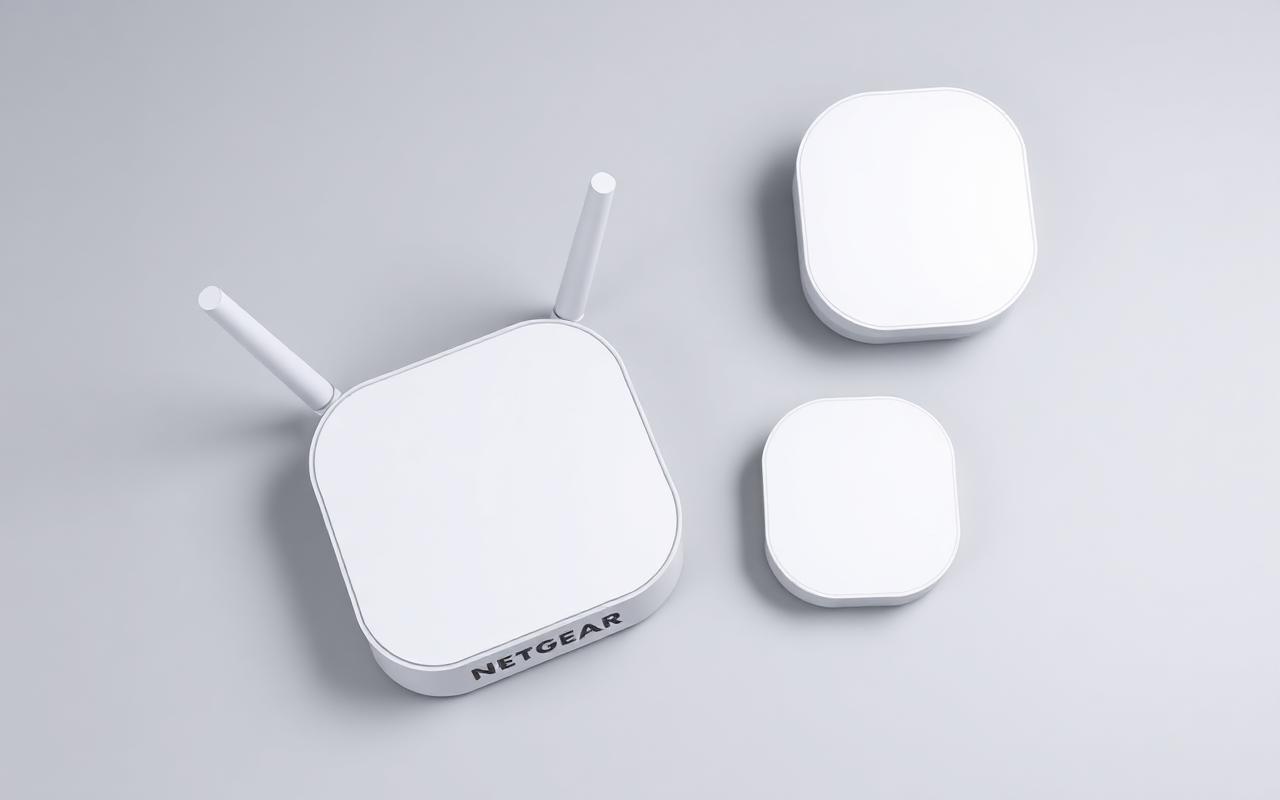
Orbi router, one or more satellites, power adapters, and Ethernet cable.
Download the Orbi app
Install the official Netgear Orbi app from the App Store or Google Play.
Check modem internet
Confirm your modem is online and the WAN light is steady before connecting Orbi.
Web browser setup via orbilogin.com
Five clear steps to configure the Orbi router from any browser.
- 1
Connect Orbi router to modem
Use the included Ethernet cable to connect the Orbi router's yellow WAN port to your modem. Power on the router and wait until the ring LED turns white.
- 2
Join the default Orbi WiFi
From a phone or laptop, connect to the default WiFi name and password printed on the router label.
- 3
Open orbilogin.com
Open a web browser and visit http://orbilogin.com or http://orbilogin.net. If that doesn't load, try http://192.168.1.1 as a fallback.
- 4
Create the admin account
Follow the prompts to create an admin username and password. Save these credentials securely — they protect your router settings.
- 5
Configure SSID & password
Set your preferred WiFi network name (SSID) and a strong WPA2/WPA3 password. Apply the settings; the router will restart with the new network.
Satellite placement & sync
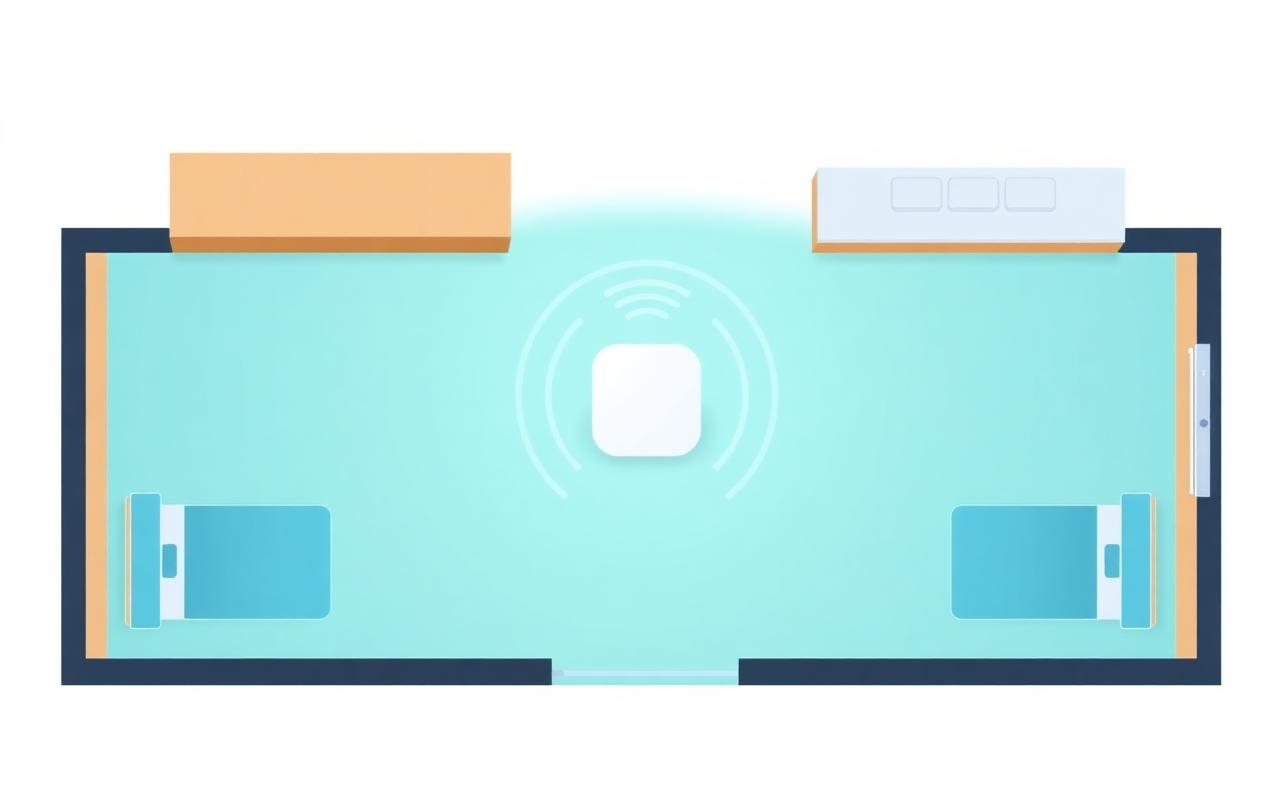
Place each Orbi satellite within range of the router — typically no more than two rooms away. Power it on and wait up to two minutes for the ring LED to indicate sync status. If sync fails, move the satellite closer and reboot.
- Place satellites at the halfway point between the router and the weak-signal area.
- Avoid placing satellites near microwaves, large metal objects, or thick concrete walls.
- Use the Sync button on the back of the satellite to manually pair with the router.
- After sync, the ring LED briefly shows status and then turns off — this is normal.
Ring LED reference
Solid Blue
Strong connection between satellite and router. Placement is good.
Solid Amber
Fair connection. Move the satellite closer to the router for better performance.
Solid Magenta
No connection to the router. Move the satellite closer and re-sync.
Pulsing White
Satellite is booting or syncing. Wait until the LED turns off or solid blue.
Disclaimer & Trust Disclosure
This webpage is an independent informational guide and documentation resource for Netgear Orbi users. We are not affiliated with, authorized by, or endorsed by Netgear Inc. All product names, logos, and brands are property of their respective owners. For official support, warranty service, or firmware downloads, please visit netgear.com/support.
Supported Orbi & extender models
This guide applies to popular Netgear Orbi mesh systems and Netgear range extenders. Use the button below each Orbi card to start a new guided setup.
Netgear Orbi mesh systems
Orbi Quad-Band WiFi 6E
Model RBKE963
Tri-satellite mesh system with dedicated 6 GHz backhaul for top-tier coverage.
New Orbi SetupOrbi WiFi 6
Model RBR850
AX6000 tri-band mesh router with a high-throughput dedicated backhaul.
New Orbi SetupNetgear range extenders
Start a guided Orbi setup
Use the same secure contact form as our blog. Fill in your details and a setup assistant will walk you through the steps.
Troubleshooting FAQs
orbilogin.com is not loading+
Make sure your device is connected to the Orbi WiFi (not your old router). Try http://192.168.1.1 as a fallback. Clear your browser cache or try a different browser.
Satellite shows magenta LED+
The satellite cannot reach the router. Move it closer (one room away during initial sync), reboot, and re-sync using the Sync button on both devices.
WiFi password is rejected+
Re-enter the password carefully — it is case-sensitive. If you recently changed it, update it on the modem/router first.
Slow speeds after Orbi setup+
Confirm satellite placement (solid blue LED), update firmware via orbilogin.com → Administration → Firmware Update, and verify your ISP plan speed at the modem.
Forgot Orbi admin password+
Use the factory reset pinhole on the back of the router for 7 seconds. The device returns to defaults and you can re-run setup.